Mga Pahina

Martes, Hulyo 9, 2019

Windows Setup: Installing using GPT partition style

To manually wipe a drive and convert it to GPT:

Turn off the PC, and put in the Windows installation DVD or USB key.

Boot the PC to the DVD or USB key in UEFI mode. For more info, see Boot to UEFI Mode or Legacy BIOS mode.

From inside Windows Setup, press Shift+F10 to open a command prompt window.

Open the diskpart tool:
diskpart
*Identify the drive to reformat:
list disk
*Select the drive, and reformat it:
select disk <disk number>
clean
convert gpt or ntfs
exit
Close the command prompt window.

Continue the Windows Setup installation.

When choosing an installation type, select Custom. The drive will appear as a single area of unallocated space.

Select the unallocated space and click Next. Windows begins the installation.

Miyerkules, Abril 10, 2019

How can I clear the Run history?

The Run history is stored in the registry in location 

as a series of values a-z. To delete an entry from the run menu perform the following:
  1. Start the registry editor (regedit.exe)
  2. Move to HKEY_CURRENT_USER\Software\Microsoft\Windows\CurrentVersion\Explorer\RunMRU
  3. Select the entry you wish to remove, e.g. h
  4. Press the Del key (or select Edit - Delete) and click Yes to the confirmation
  5. Double click the MRUList value and remove the letter you just deleted. Click OK to save the change
  6. Close the registry editor

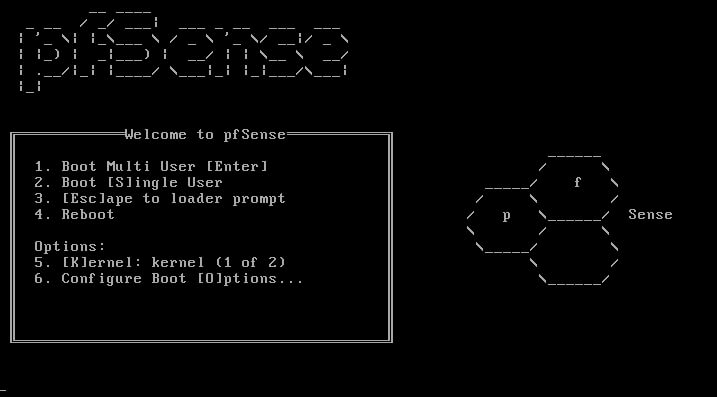
Pfsense boot loop fix

Image result for pfsense boot menu

boot as single user mode after give the command in prompt /sbin/fsck -y -t ufs /


Huwebes, Pebrero 21, 2019

Resetting Your Forgotten Windows Password


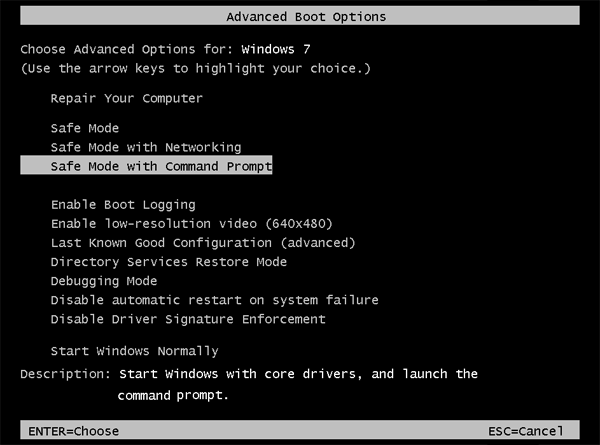
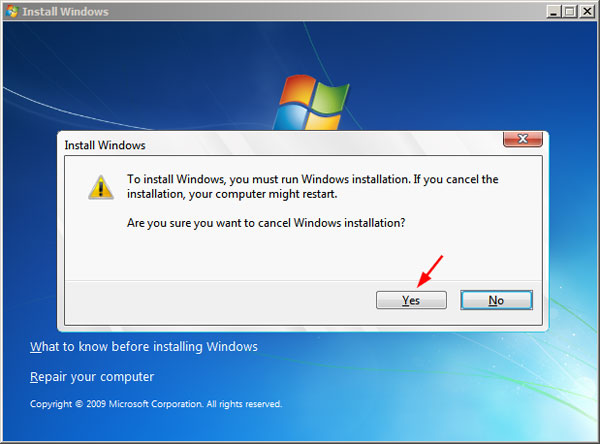
Boot off the Windows disk and select the “Repair your computer” option from the lower left-hand corner

Follow through until you get to the option to open the Command Prompt, which you’ll want to select.
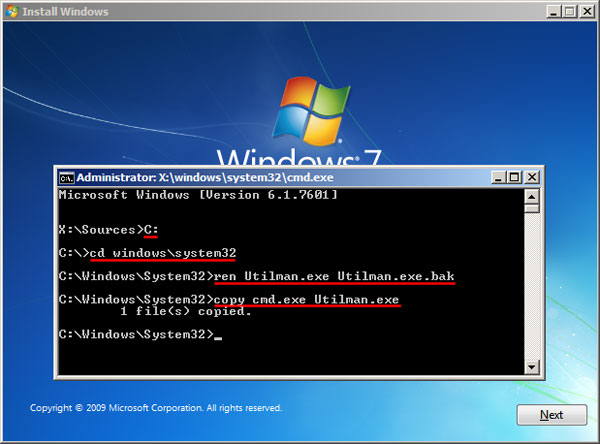
First you’ll want to type in the following command to backup the original sticky keys file:
copy c:\windows\system32\sethc.exe c:\
Then you’ll copy the command prompt executable (cmd.exe) over top of the sticky keys executable:
copy c:\windows\system32\cmd.exe c:\windows\system32\sethc.exe
Now you can reboot the PC.
Resetting the Password
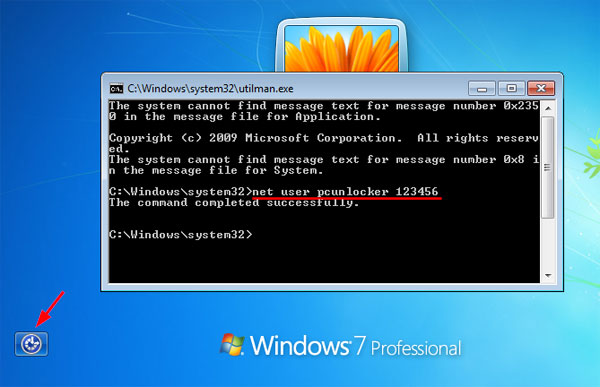
Once you get to the login screen, hit the Shift key 5 times, and you’ll see an administrator mode command prompt.
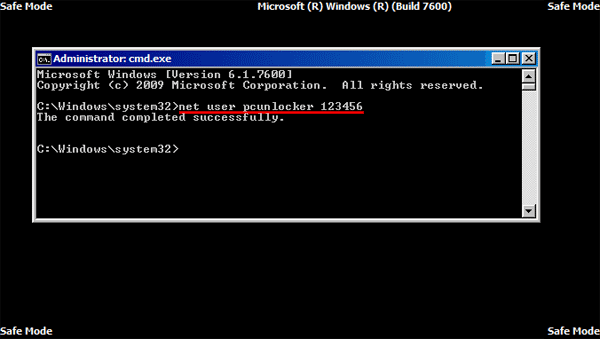
Now to reset the password—just type the following command, replacing the username and password with the combination you want:
net user geek MyNewPassword
That’s all there is to it. Now you can login.
Of course, you’ll probably want to put the original sethc.exe file back, which you can do by rebooting into the installation CD, opening the command prompt, and copying the c:\sethc.exe file back to c:\windows\system32\sethc.exe.

Martes, Nobyembre 13, 2018

How to fix can't change windows update settings.

For Windows Vista/7

Click Start and type regedit in the Search Programs and Files field. Then right-click on regedit in the programs list and select Run as Administrator.

Within the Registry Editor, navigate to: HKEY_LOCAL_MACHINE\SOFTWARE\Policies\Microsoft\Windows\WindowsUpdate\AU.

On the right side of the window, locate AUOptions and NoAutoUpdate. Delete both of these registry keys.

Reboot

You should now be able to edit Windows Update

Huwebes, Nobyembre 8, 2018

HIDE THE NETWORK PLACES IN EXPLORER


Run as SYSTEM USER(you can use any monitoring software)

reg add "HKLM\SOFTWARE\Microsoft\Windows\CurrentVersion\Policies\NonEnum" /v {F02C1A0D-BE21-4350-88B0-7367FC96EF3C} /t REG_DWORD /d 1 /f

if you want to enable it just change the "1" to "0" after the /d

kung need i e-enable ulit just change the "1" to "0" after the /d.

Miyerkules, Nobyembre 7, 2018

How to fix BAD_SYSTEM_CONFIG_INFO. loading forever

select advance options
choose command
type d:
type dir
type cd d:\windows\system32\config
type md backup
type copy *.* backup
type cd regback
type copy *.* ..
type a
type exit
turn off PC