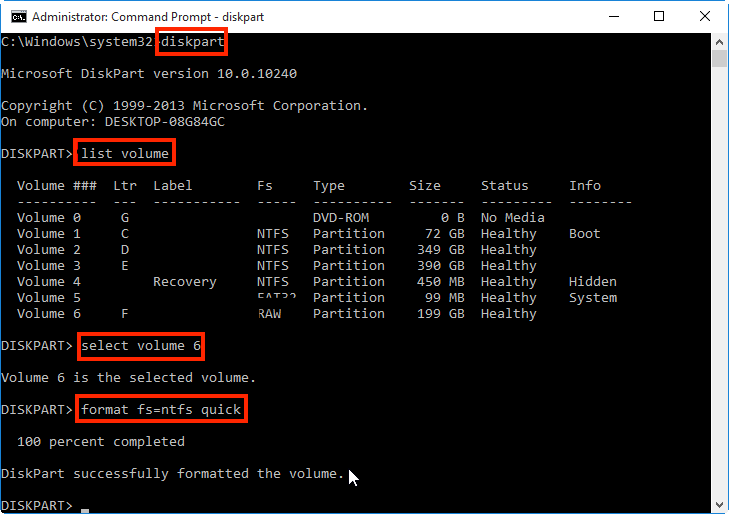
.open cmd and type
1. slmgr /ipk W269N-WFGWX-YVC9B-4J6C9-T83GX
2. slmgr /skms kms8.msguides(.)com
3. slmgr /ato
![Secure Boot [Enabled] on a Dell computer](https://i2.wp.com/neosmart.net/wiki/wp-content/uploads/sites/5/2014/02/dell-uefi-secure-boot-enabled-disabled.png?ssl=1)
![Secure Boot [Enabled] on a HP computer](https://i0.wp.com/neosmart.net/wiki/wp-content/uploads/sites/5/2014/05/HP-Secure-Boot.jpg?ssl=1)
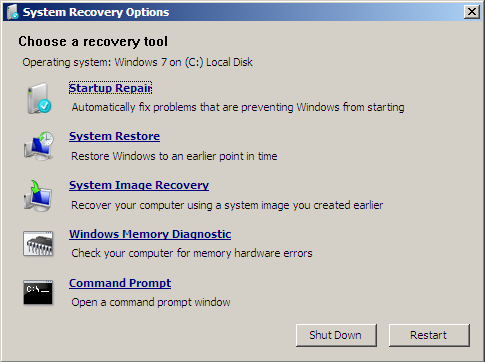
bootrec /fixmbr
bootrec /fixboot
bootrec /ScanOs
bootrec /rebuildBcd

bootsect /nt60 SYS /mbr
exit in Command Prompt and press Enter

diskpart
DISKPART>
sel disk 0
Disk 0 is now the selected disk.
list vol

sel vol 2
assign letter=G:
G: should be a unique drive letter. It can’t be already used, e.g. C:\, D:\DiskPart successfully assigned the drive letter or mount point.
exit
cd /d G:\EFI\Microsoft\Boot\
G: is the drive letter you’ve assigned to your UEFI partition a few steps back. If the \EFI\Microsoft\Boot\ folder doesn’t exist (the error message will be “The system cannot find the path specified”), you can run the same command on alternative paths:cd /d G:\Boot\
cd /d G:\ESD\Windows\EFI\Microsoft\Boot\
G: with the UEFI’s partition letter.bootrec /fixboot
bcdboot C:\windows /s V: /f UEFI
ren BCD BCD.bak
Bcdboot C:\Windows /l en-us /s x: /f ALL
C:\ is the letter of the drive where Windows 8, Windows 8.1 or Windows 10 is installed on. The /l en-us parameter is used for localization: US. You can use ln /en-gb for UK localization.bootrec /rebuildbcd
exit in Command Prompt